

The AI Console has grown into something closer to a research desk than a chat box. You can convene a room of analysts to argue a thesis, hand the work off to a team of agents that run at the same time, and walk away with a finished report, a formatted PDF, or a live Excel model. This walkthrough is a tour of what shipped, screen by screen, so you can put it to work today.
You describe the outcome you want in plain language, and the console assembles the tools, the data, and the analysts needed to produce it. You stay the decision maker. The console does the assembly.
Everything below is captured from the live product. Where a feature earns a deeper explanation, there is a link to the full documentation on the docs site.
Objective
What can the AI Console actually produce for you now, and how do you drive each surface from a standing start?
The War Room
The War Room is a council of AI analysts that debates a single question in rounds. You open it from the console, type the question you want argued, then seat the table. A panel can run anywhere from two to fifty seats, and the order you seat them is the order they speak.
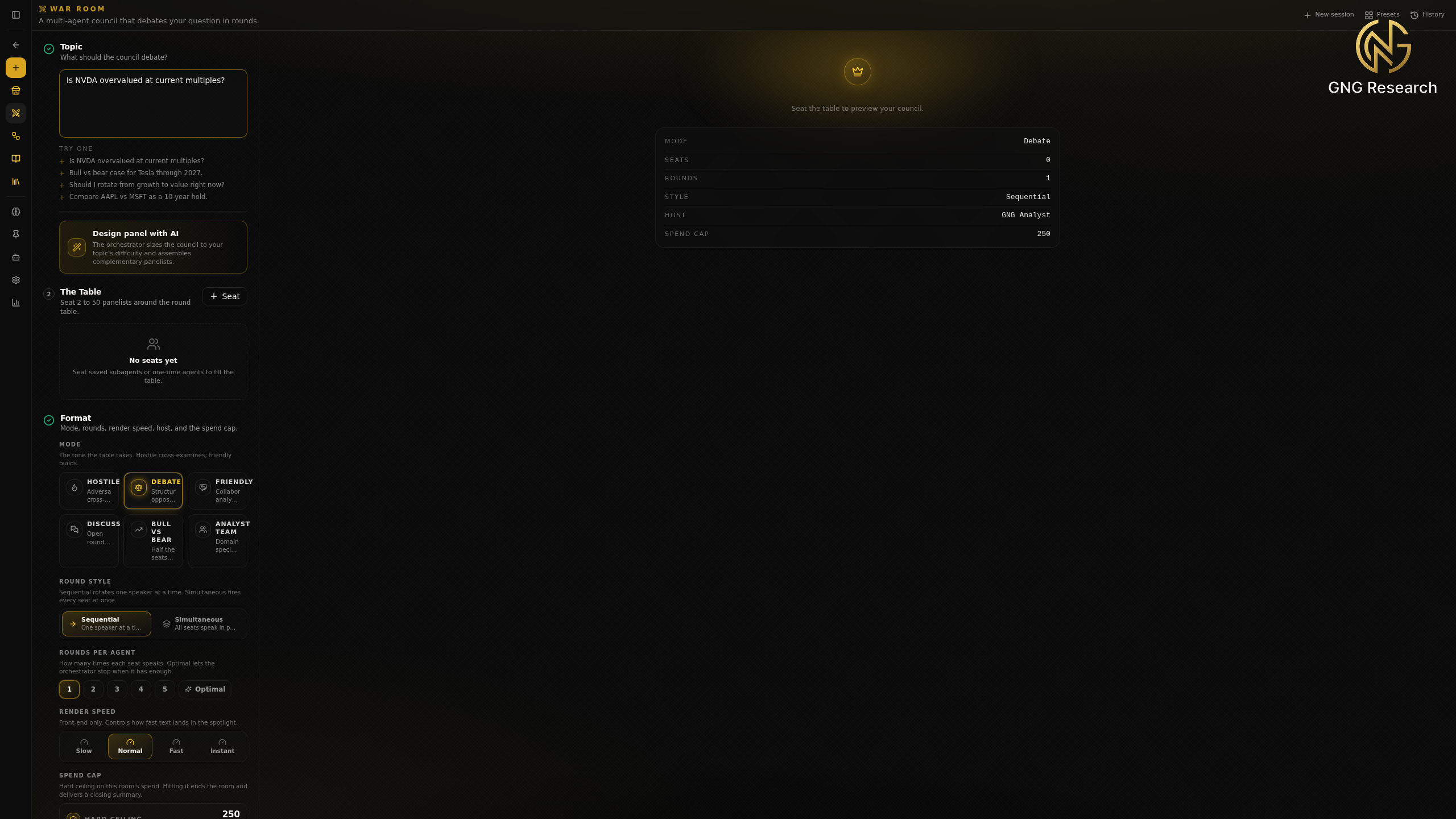
The setup screen keeps the whole configuration on one rail. You write the topic, seat the panelists, and pick the format. The mode sets the tone of the room. Debate has each analyst defend a position and rebut the others, Hostile turns it into an adversarial cross examination, and Friendly has the seats build on one another instead. You choose how many rounds each seat speaks, and you set a spend cap in GNG credits that acts as a hard ceiling on the session.
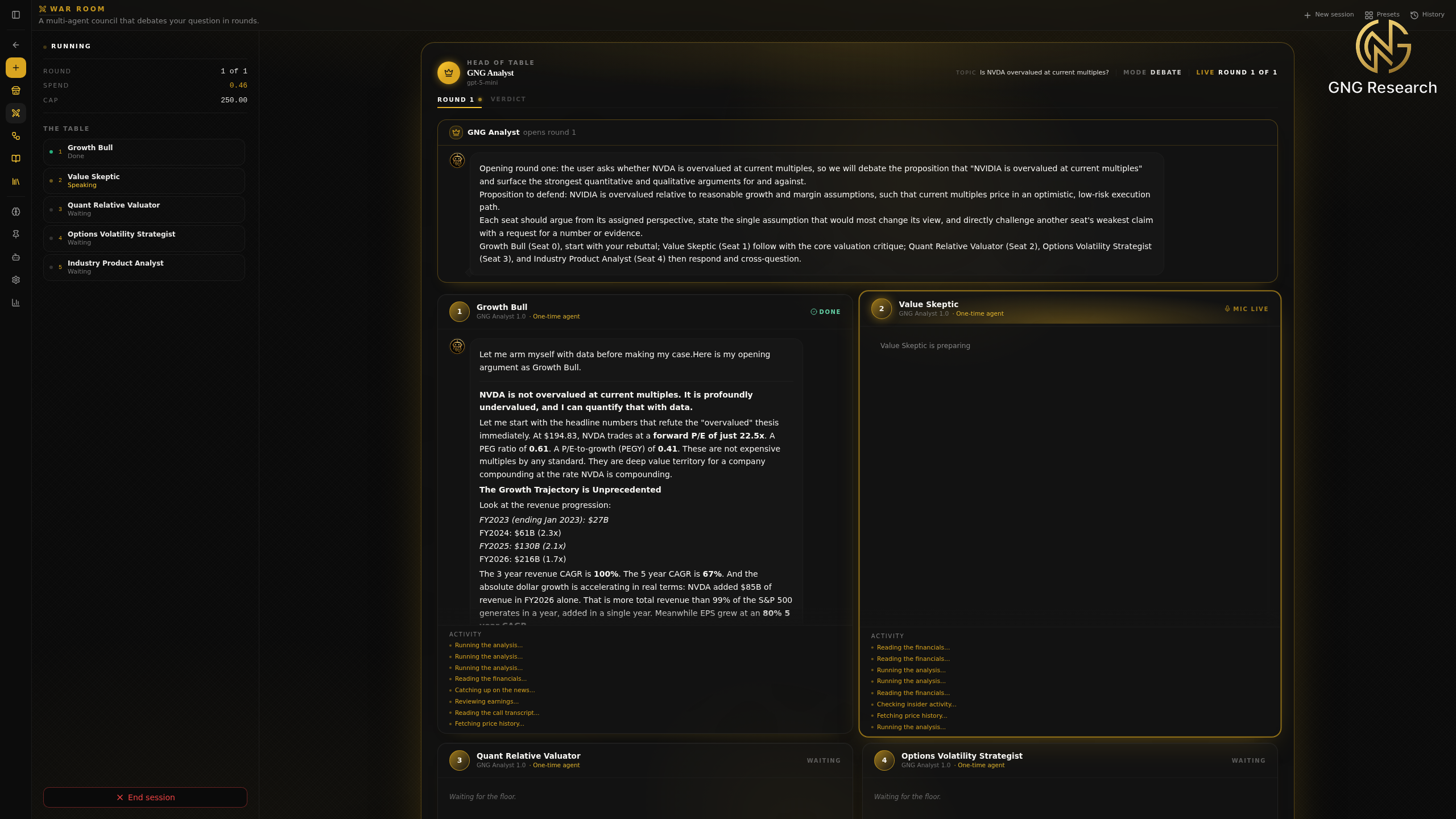
Nothing is charged until you start. Once the session begins, the room becomes a live theater. Each seat takes its turn in speaking order, a status marker moves through waiting, thinking, and speaking, and an activity strip names any live research a seat reaches for while it argues. A running readout tracks the round, the spend, and the cap so you always know where the session stands. Full detail on seating the table and the live room and verdict lives in the docs.
The Result
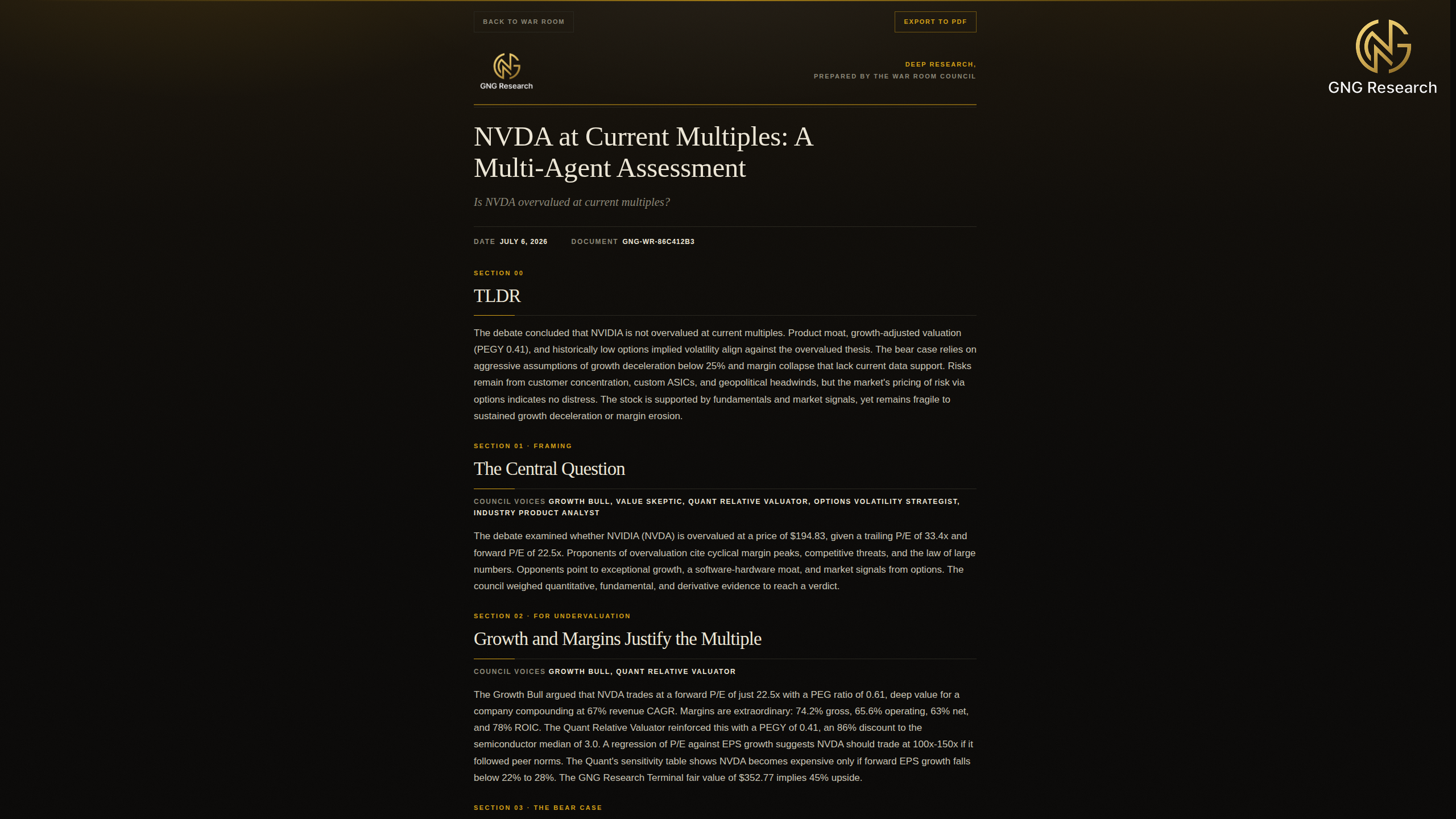
When the debate finishes, the room writes a deep research report. It is produced automatically for every session, and it reads like a research note rather than a transcript. There is a masthead with the GNG Research lockup, a title block naming the topic, a date, and a document identifier. Section 00 is the TLDR, the distilled conclusions first, followed by numbered sections that carry the reasoned analysis and the council voices behind each one.
The report sits inside the finished session under a Results view, and you can reopen it from your past councils at any time. A floating action exports it to a clean, printable PDF. Sharing, exporting, and replaying a finished council cost nothing.
Designing your own council
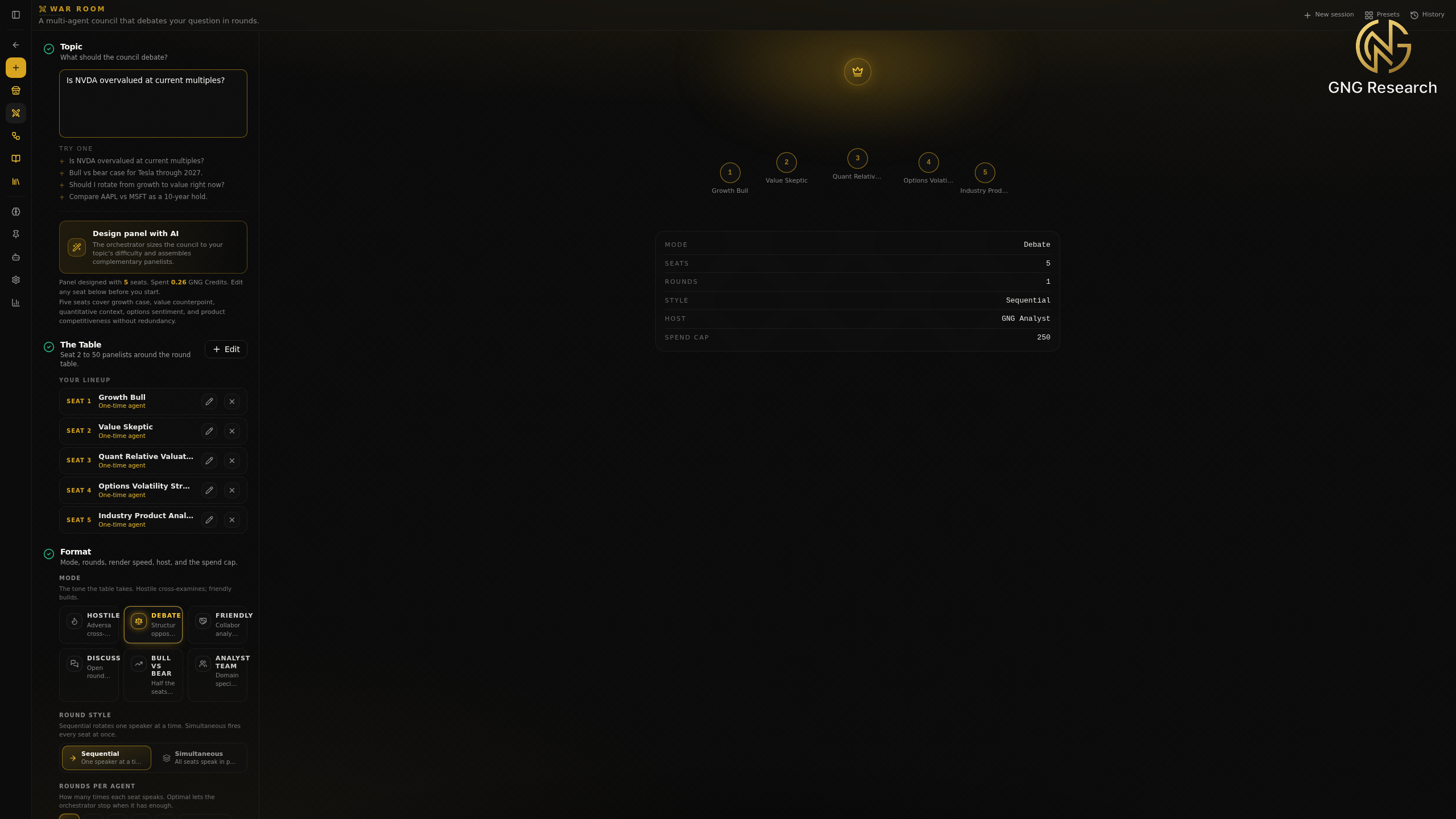
You do not have to seat every panelist by hand. Write a topic, then use Design panel with AI. The host reads your question, judges how hard it is, and drafts a balanced panel of complementary seats, along with a suggested mode and round style. A narrow question gets a tight panel of three or four. A sprawling, cross domain thesis gets more.
Every designed seat drops into your lineup fully editable. You can rename a seat, rewrite its persona, or narrow its tools before you start. Designed seats and one time seats both run on GNG Analyst 1.0, the auto router that picks the best model for each seat and each round at the lowest cost, so you never have to think about model selection. In the example below, one topic produced a five seat council covering the growth case, the value counterpoint, quantitative context, options sentiment, and product competitiveness, with no redundancy.
Documents built to your specification
The console now produces finished, downloadable files. Ask for a report and you get a PDF. Ask for a deck and you get slides. Ask for a memo and you get a Word document. Ask for a model or an export and you get an Excel workbook. You request them in in chat, for example "turn this into a client ready PDF with a cover and the comparison chart," and the file assembles while the reply streams. Every successful document typically costs one GNG credit, and a render that fails costs nothing. The full behavior is documented under generated documents.
PDF is the design showcase. There is no house template forced on you. The model designs the whole document to your request, choosing a dark or a light treatment, a cover, a type pairing, and charts to fit the audience. GNG branding is applied only when you ask for it. That gives you room to produce anything from a somber one page memo to a full color research brief.
Ask for a model and you get a workbook with formulas. The assumptions sit on their own tab as editable inputs, and the forecast and the valuation recalculate from those cells through real cross tab references. Edit a growth rate or a discount rate and the implied share price moves with it. That live, formula referenced modeling is possible thanks to our proprietary document system, and it is the difference between a spreadsheet you read and a model you can actually drive. Ask for a data export instead and you get static values, ask for a model and you get the formulas.
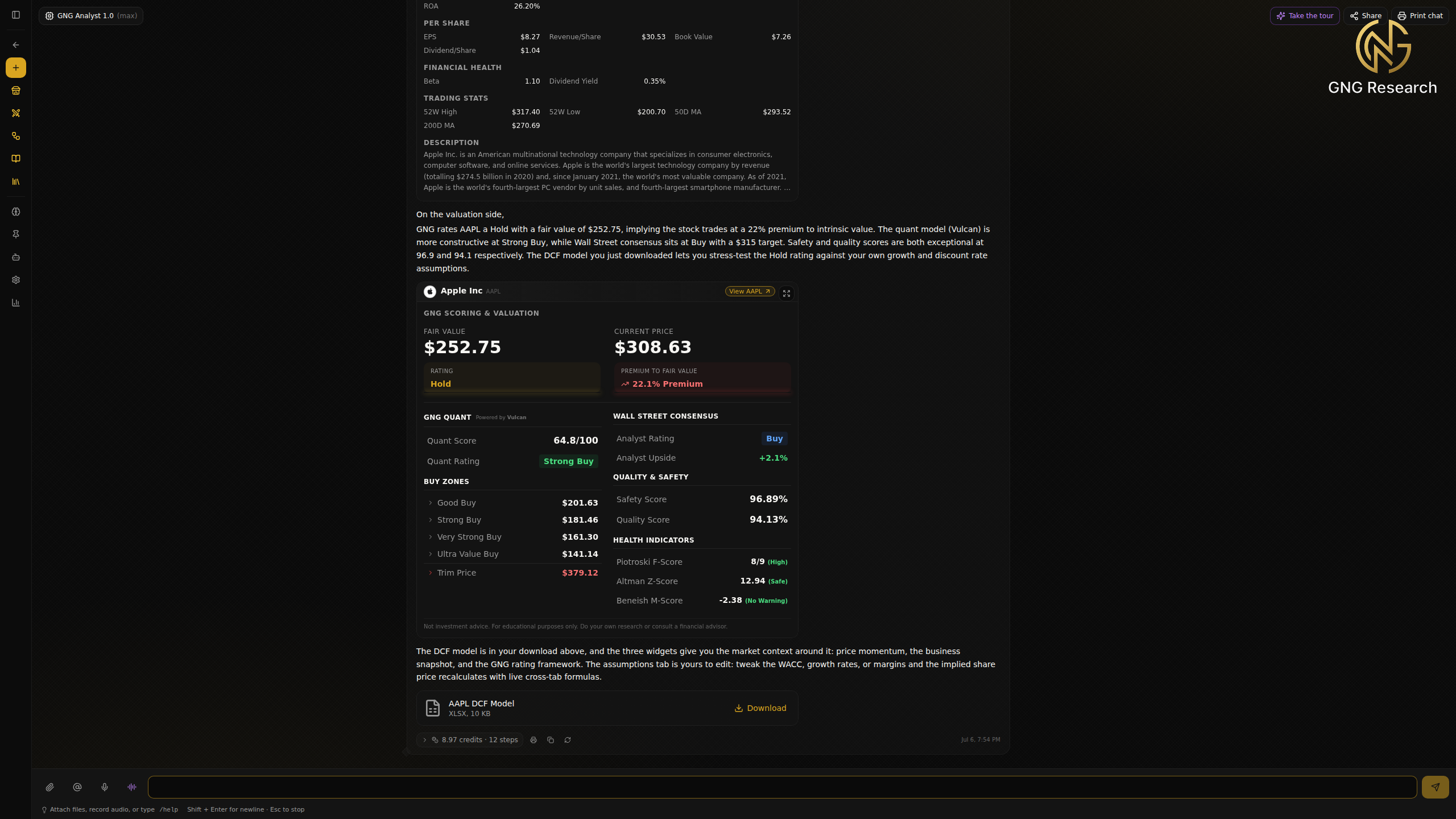
Every document and image the console makes for you collects in the Library. It is one place, searchable as you type, with a plain filter for documents versus images. Each item opens or downloads with a fresh private link, so nothing ever goes stale on you. Browsing and downloading in the Library are free. Only generating a new item draws down credits.
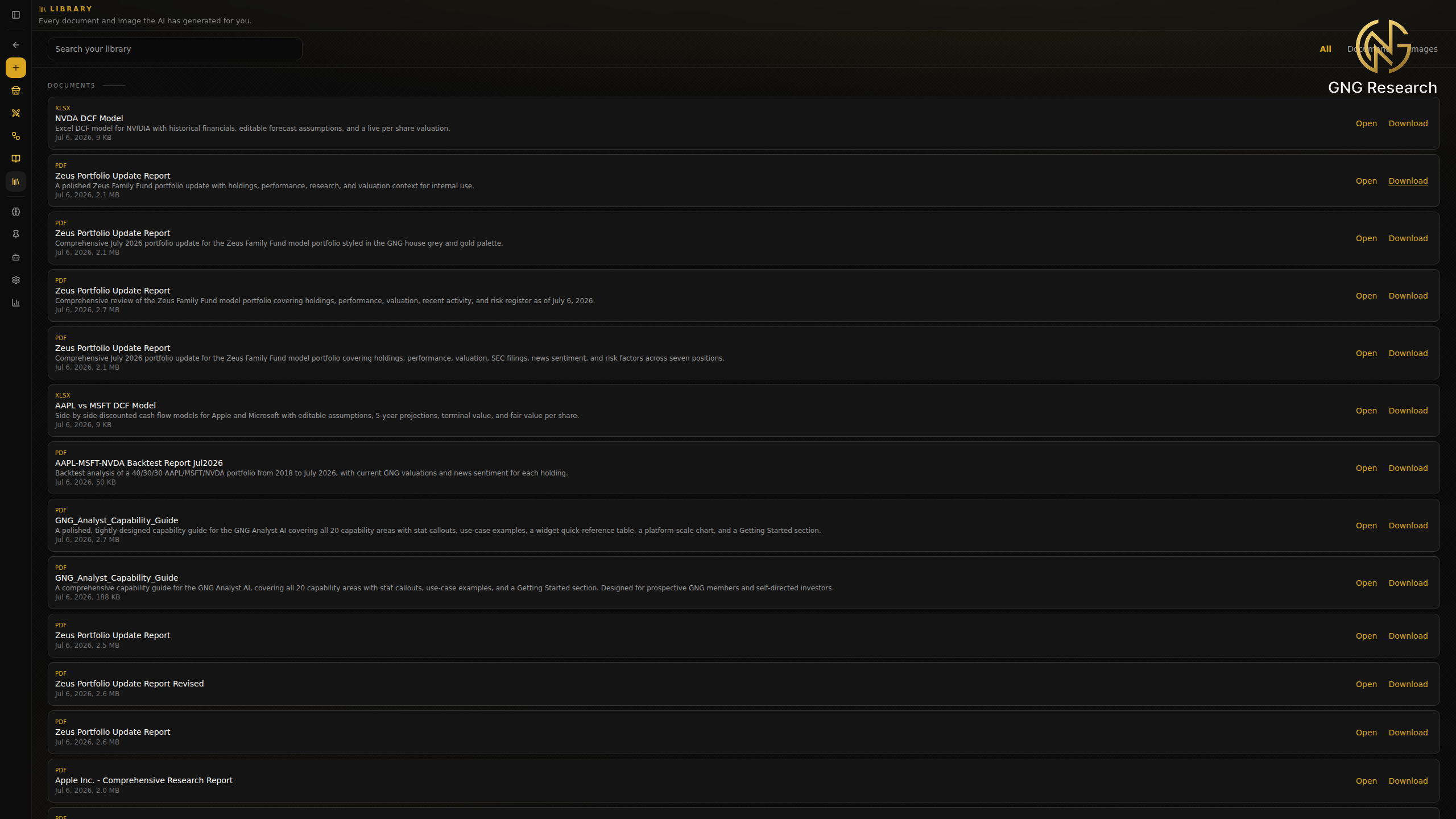
The Library holds more than documents. Every image the console generates, a report cover, a chart, or a standalone illustration, lands here too, so a picture you made three chats ago is one search away.
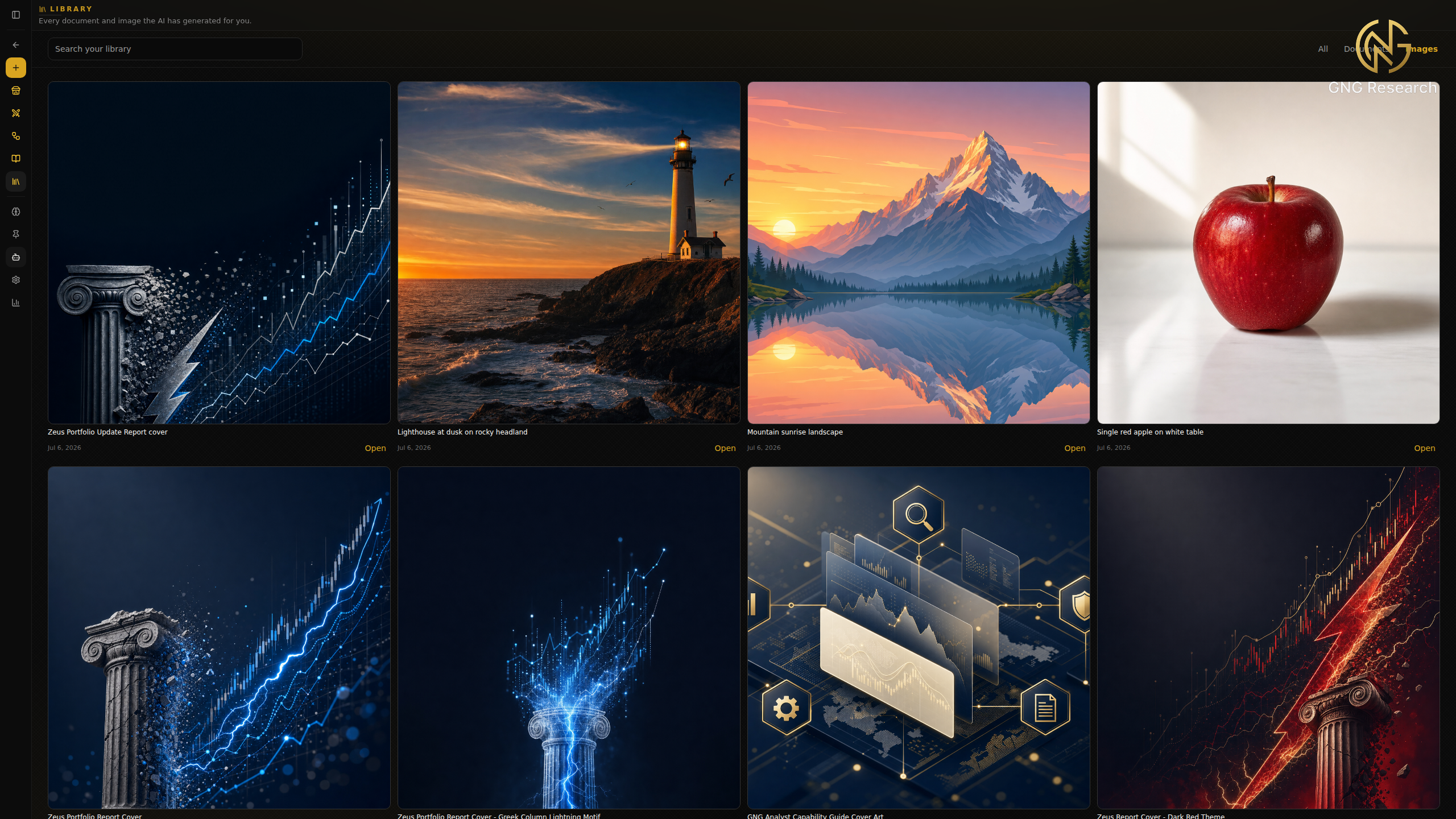
Skills
A skill is a reusable instruction package you write once and apply to a message. It has a name, a slash command, a description of when it applies, and a body of instructions the assistant follows for that turn. Skills carry no files and no code, only written instructions, and the Skills page lists everything on your plan.
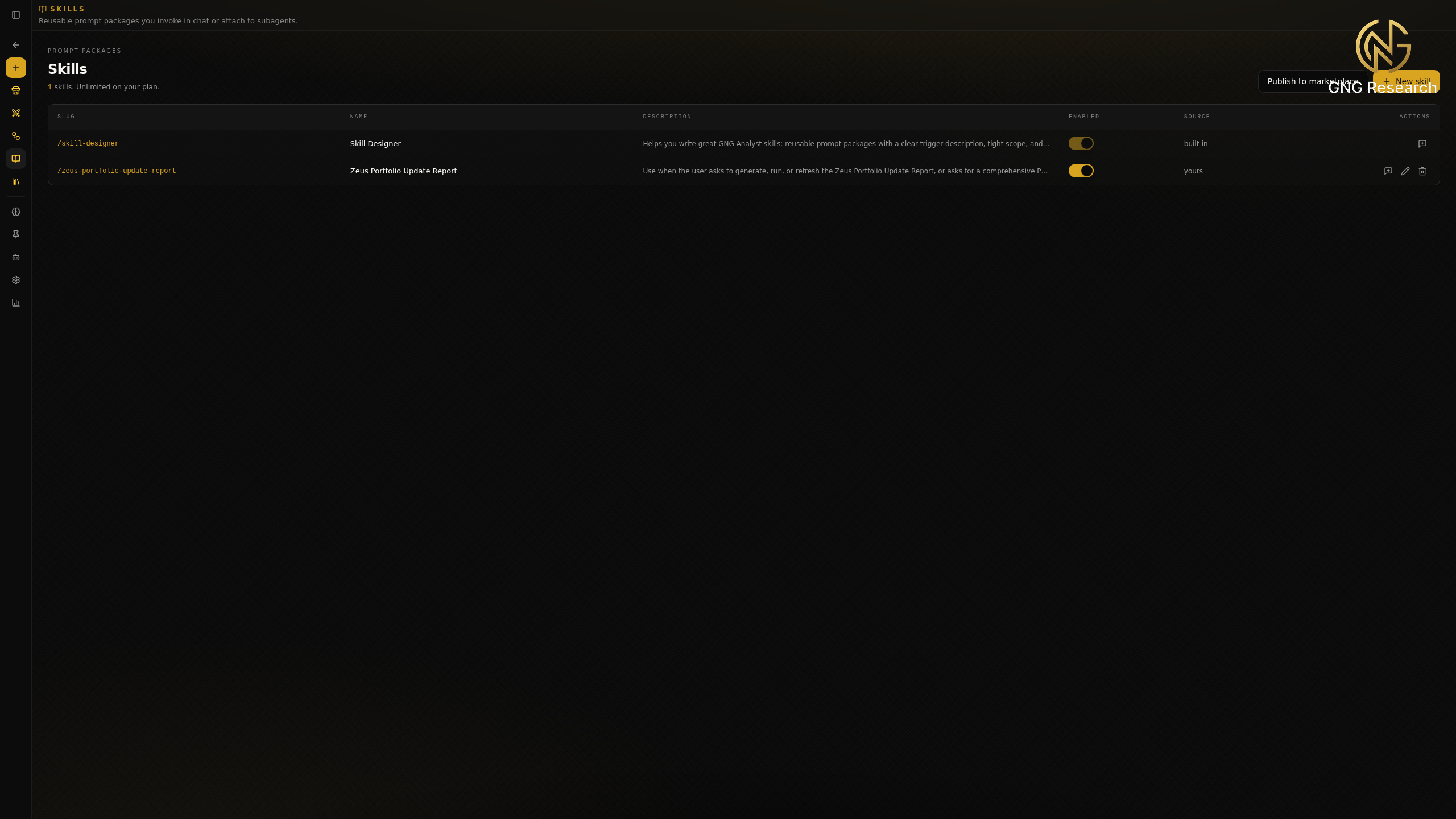
You create a skill inline. Give it a name, a slug that becomes its slash command, a description that tells the assistant when the skill applies, and the instructions themselves. The example below is a portfolio report skill that resolves a model portfolio, gathers holdings and performance, and produces a polished PDF review, all triggered by a single command. To use a skill, type a slash at the start of the message box and pick it, or type the slug directly, and it shapes that one answer without cluttering the rest of the chat.
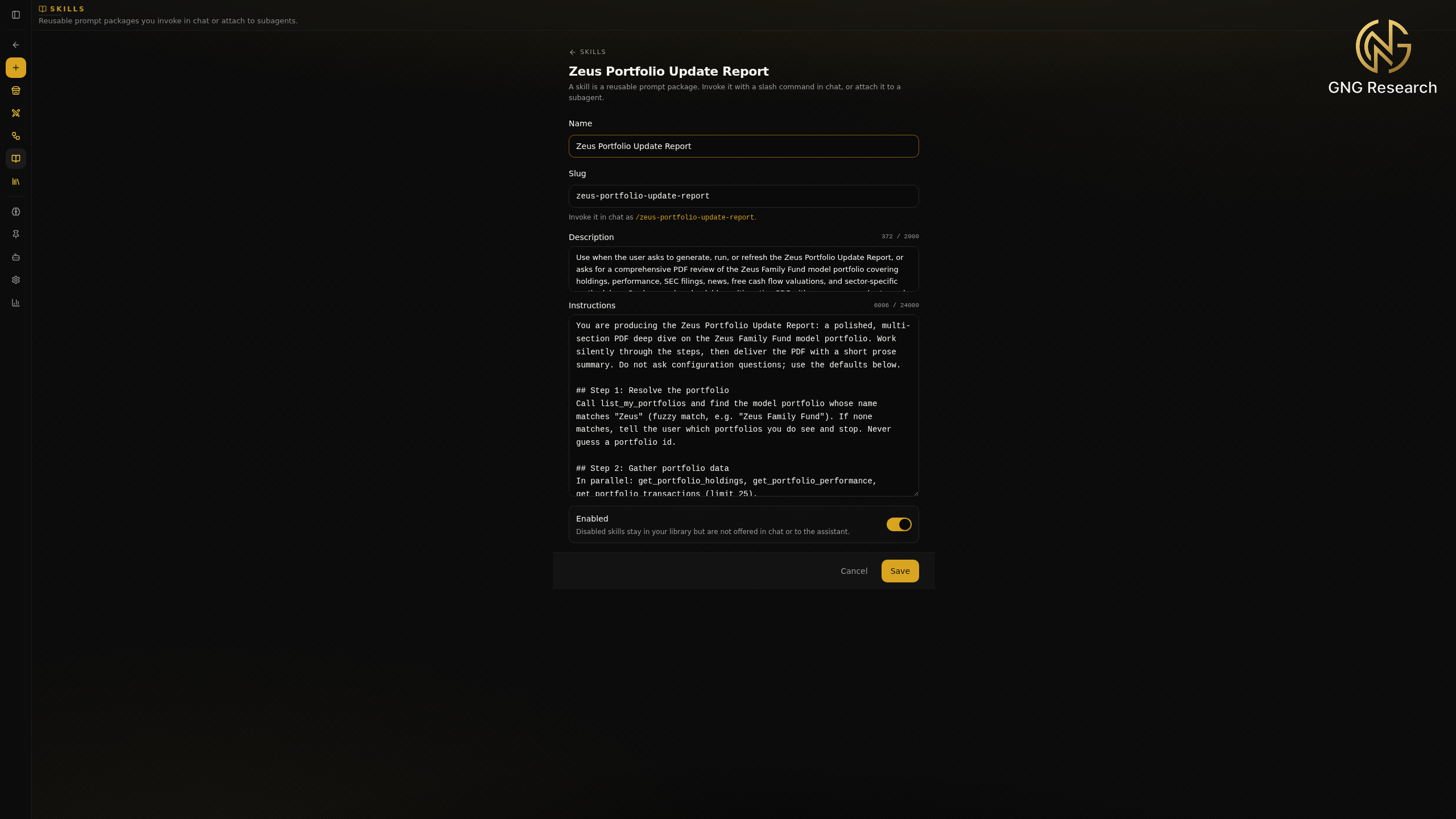
To put it plainly, making a skill takes four fields. From the Skills page you click New skill, then write a name, a slug that becomes the slash command you type to run it, a description that tells the assistant when the skill applies, and the instructions the assistant should follow. You save it, leave it enabled, and from then on typing that slash command runs your skill.
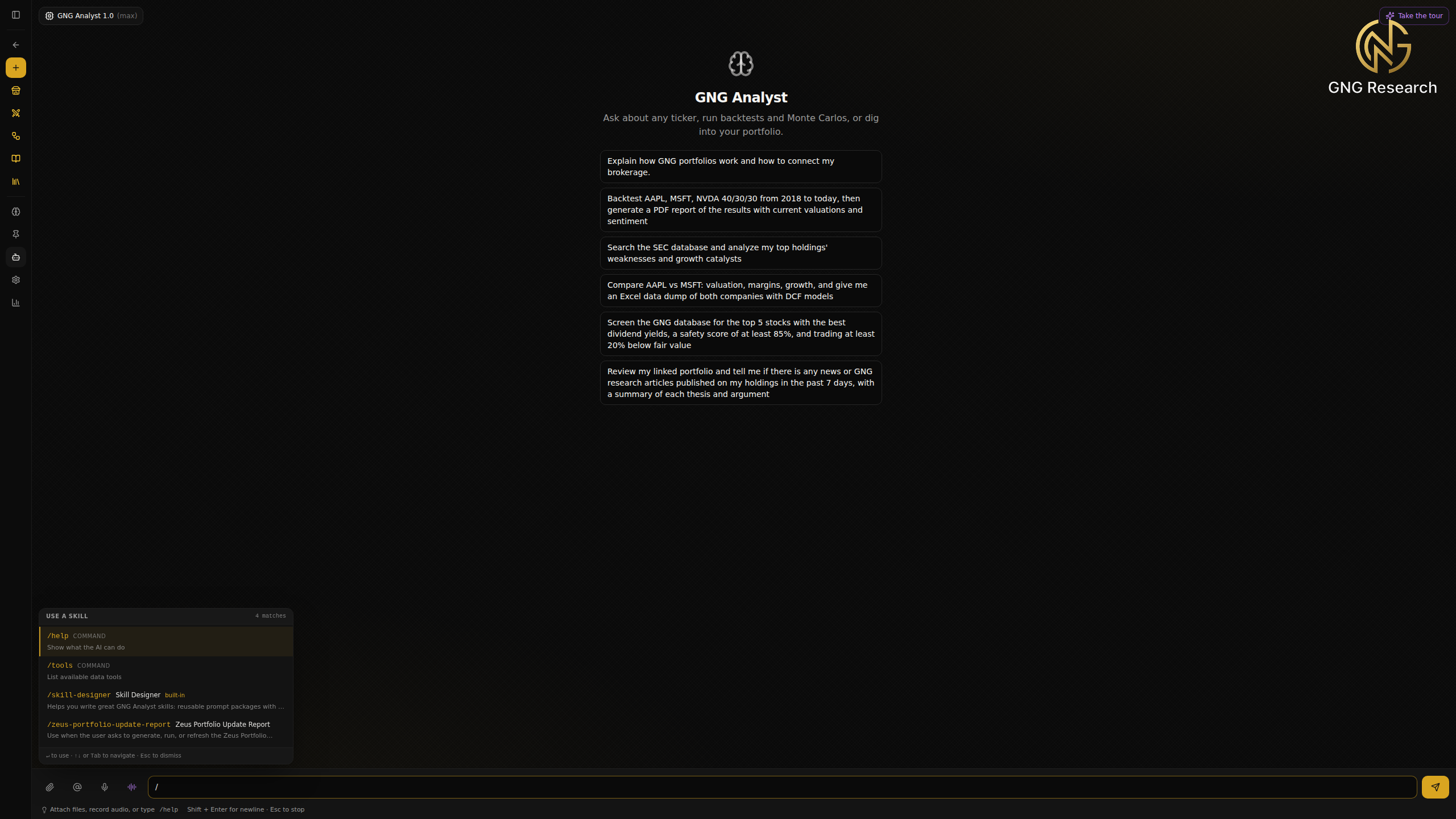
If you would rather not write it by hand, the console ships a skill that writes skills. Type a slash at the start of the message box to open the skill picker, and the built in Skill Designer sits right there next to your own. Invoke it as /skill-designer, describe the process you want to capture, and it drafts the name, the slug, a tight trigger description, and an instruction body sized to run reliably. You review it, save it, and your new command is ready. It is the fastest way to turn a task you repeat into a one command skill.
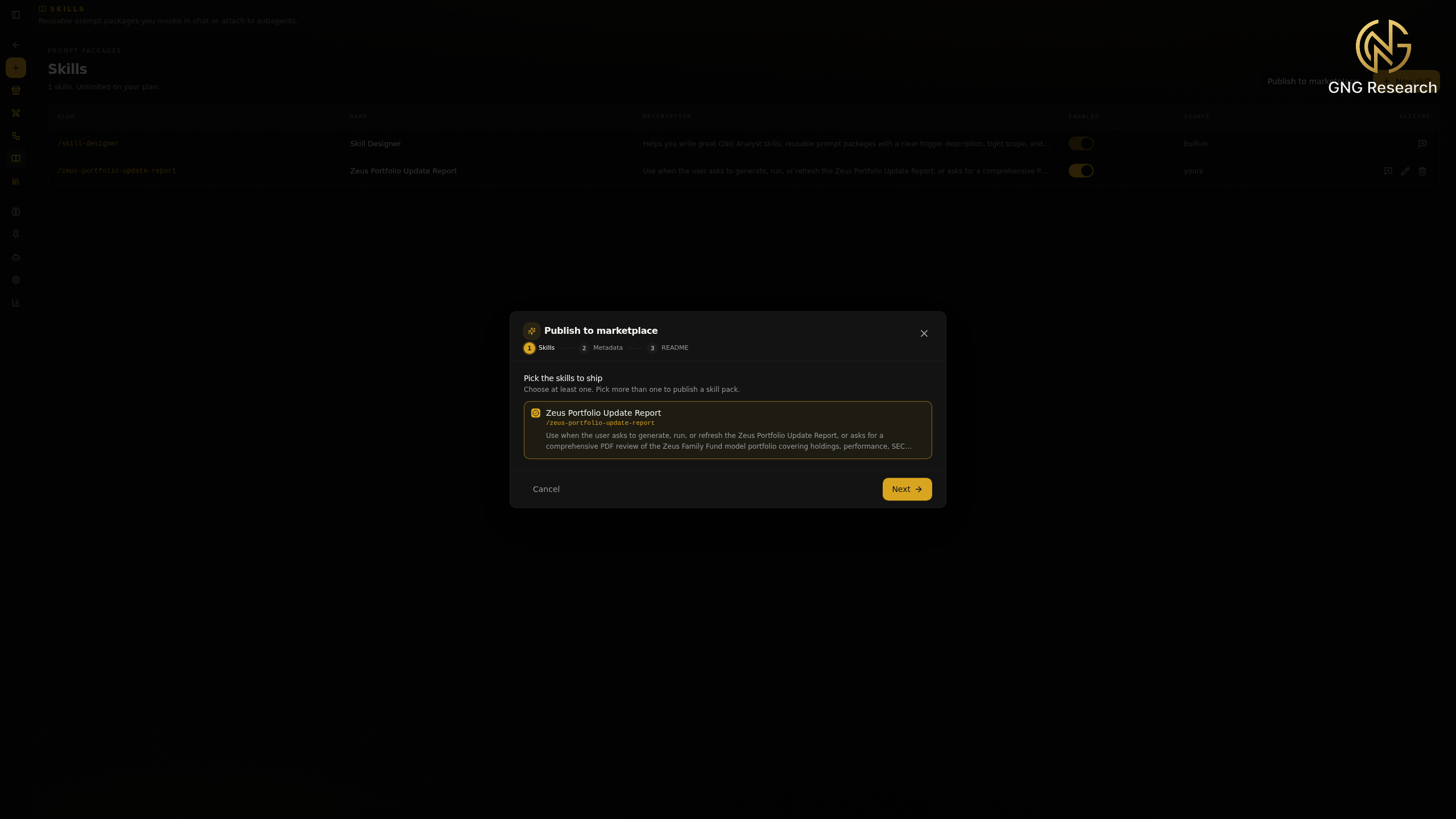
Skills are not limited to chat. You can attach a skill to one of your subagents so the agent always carries those instructions when it runs, which the next section shows. You can also publish a skill to the marketplace for other members, or import one others have shared as a starting point for your own. Publishing walks through three short steps, choose the skills to ship, add the metadata, and write a short readme.
Building your own subagents
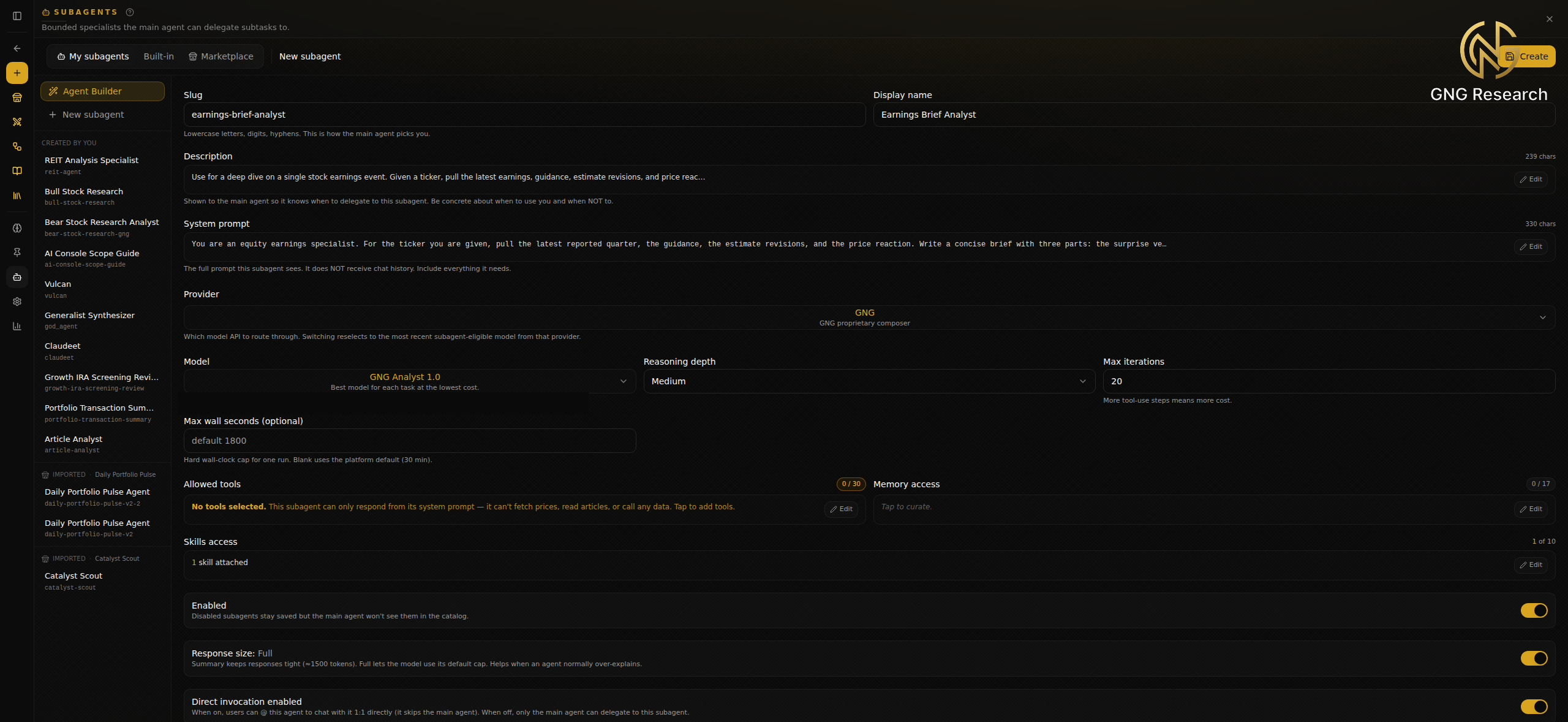
The agents that run in parallel are subagents, bounded specialists the main analyst can hand a subtask to. You build your own from the Agents page. Give it a slug the main agent uses to find it, a display name, a description that tells the main agent when to delegate to it and when not to, and a system prompt that is the only instruction the agent sees. You pick the model, the reasoning depth, and exactly which tools it may use, and you can leave the model on GNG Analyst 1.0 to let the router choose.
This is also where skills and subagents meet. The Skills access field attaches any of your skills to the agent, so its instructions ride along on every run. When the agent is saved it joins your roster, and the main analyst can delegate to it or you can talk to it directly.
A team of analysts, in parallel
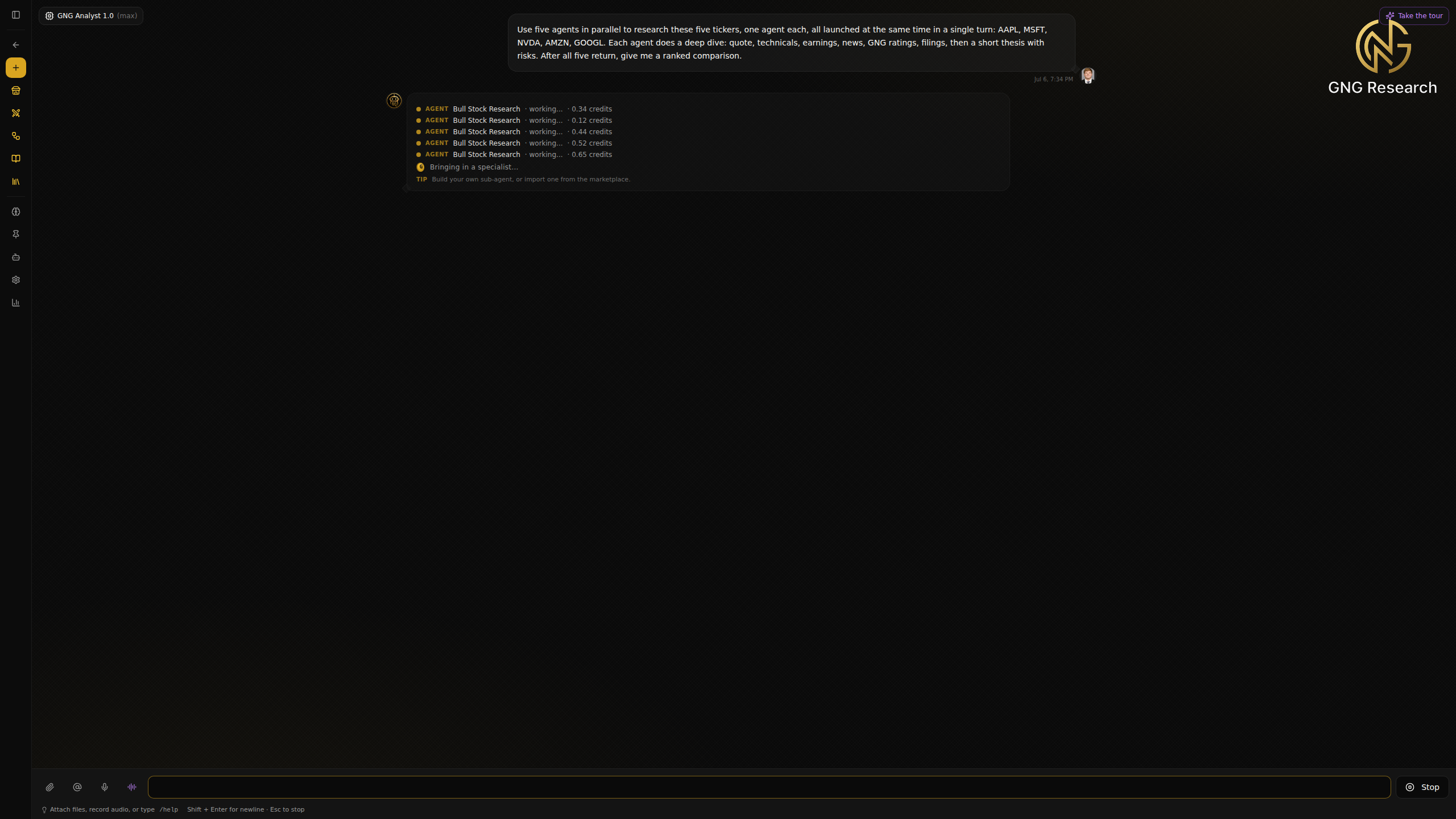
From a normal chat you can ask for several agents to work at the same time. You set the goal and the plan, and GNG Analyst dispatches a team of specialist agents that run in parallel, each on its own slice of the work. When they finish, the results come back to the main analyst, which synthesizes them into one answer rather than dumping five separate replies on you.
A clean way to see it is one agent per name. Ask the console to research five tickers with one dedicated agent each, launched together in a single turn, and it fans out the team. Each agent card shows a live status and its own running credit meter, so you can watch all five work at once.
Watchlists and your true exposure
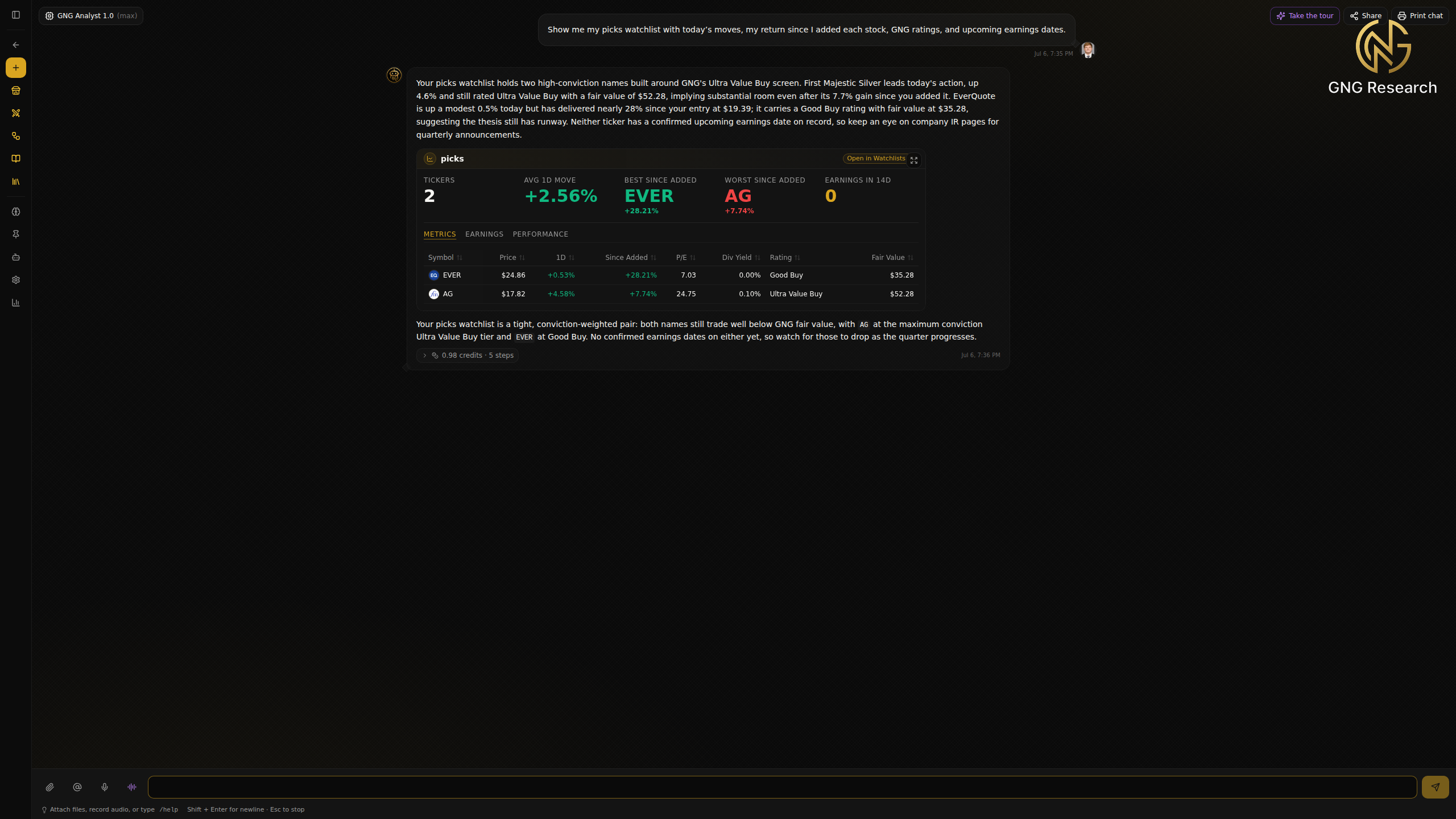
Two tools are worth calling out because they answer questions people ask constantly. The first manages your watchlists from chat. You can create a list, add or remove tickers, and pull a live view of any list with the day move, your return since you added each name, the GNG rating, and upcoming earnings, all rendered as a live table in the answer.
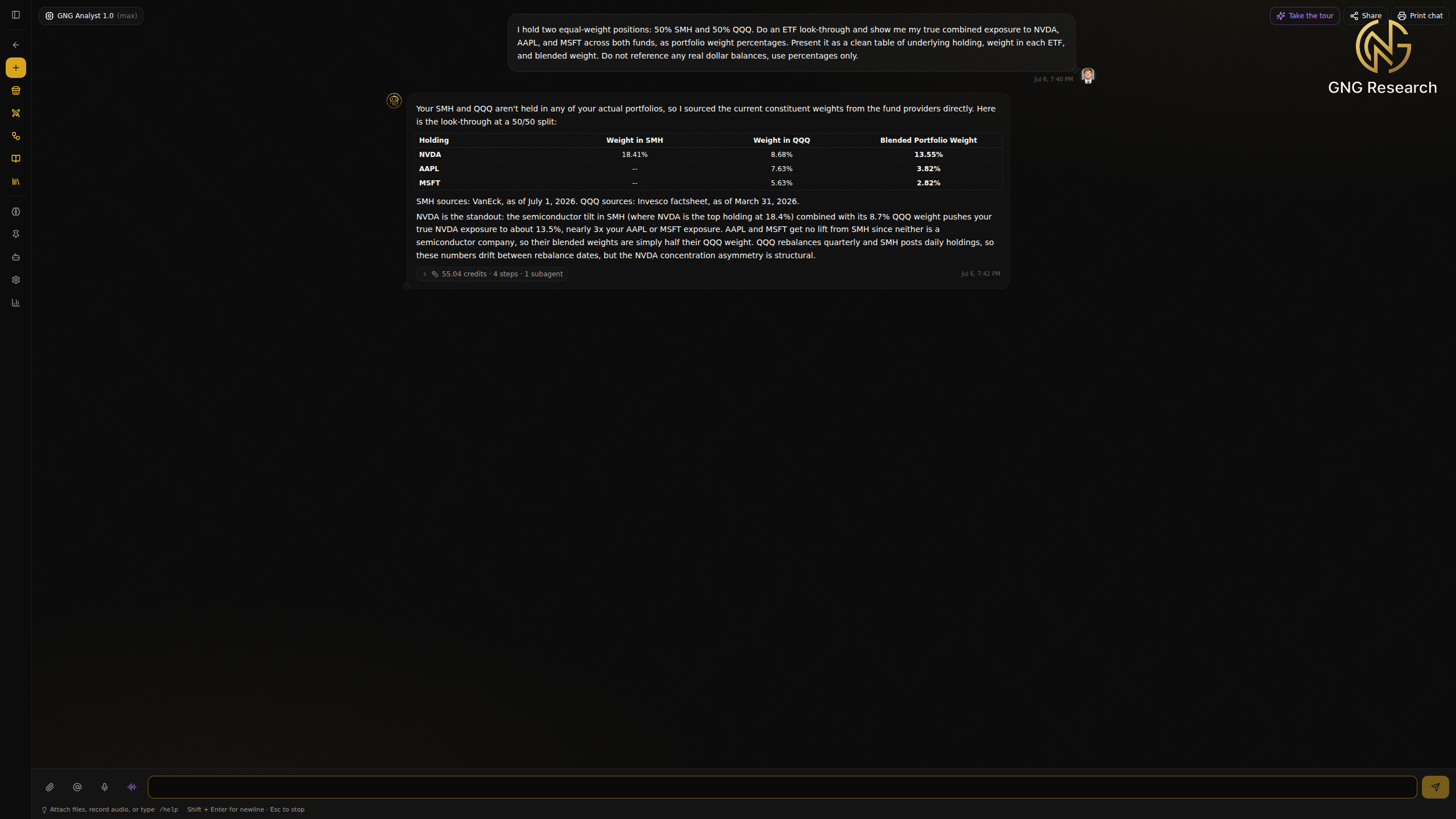
The second is ETF look through. It unpacks the funds you hold and tells you your real exposure to a name once the ETF constituents are counted. Ask how much of a stock you truly own across your funds, and it blends the direct position with the indirect exposure hiding inside each ETF. In the example below, a fifty fifty split of two funds pushes true NVDA exposure to a level well above the headline weight because of the semiconductor tilt in one of them. It is the kind of concentration that is easy to carry without noticing.
Looking ahead.. automations on the way
One capability is close but not yet live, and it is worth a preview. Soon the console will run automations that watch the market for you and deliver finished work on their own, no chat required. You will describe the trigger, the analysis, and the delivery, and the console will wire it together. We expect to ship it within the next one to two weeks.
The first shape is an event that fires on movement. When a portfolio moves past a threshold on the day, the automation pulls a snapshot and the latest news on the holdings, has the analyst explain what drove the move, and produces a report. The same trigger family covers a single stock crossing a price, a position moving, or the broad market shifting.
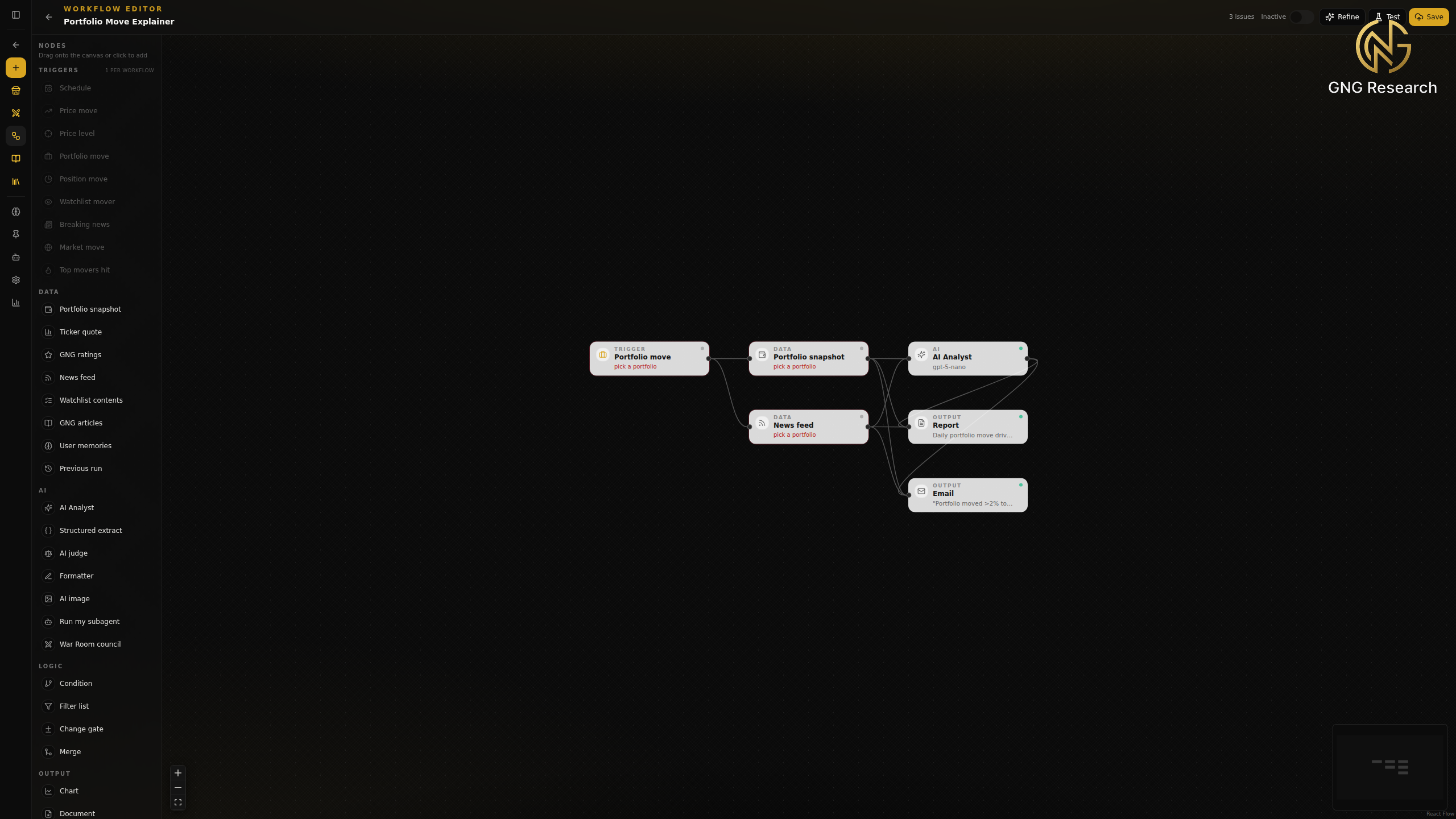
The second shape is delivery to your inbox. Any automation can compose its sections into a clean email sent to your account, so a custom report reaches you without opening the console at all. You define the subject and the sections, and the analyst fills them from the data upstream.
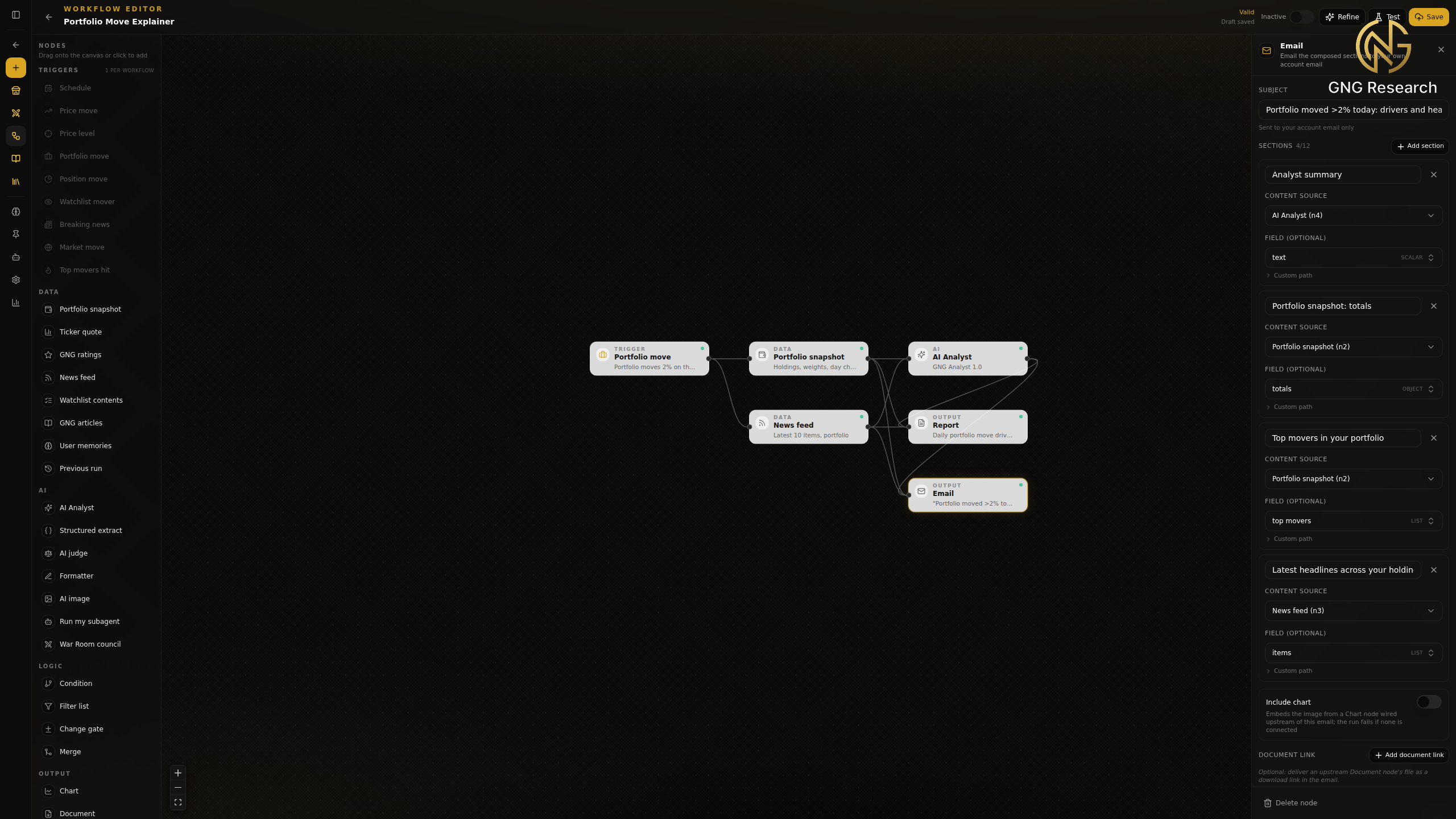
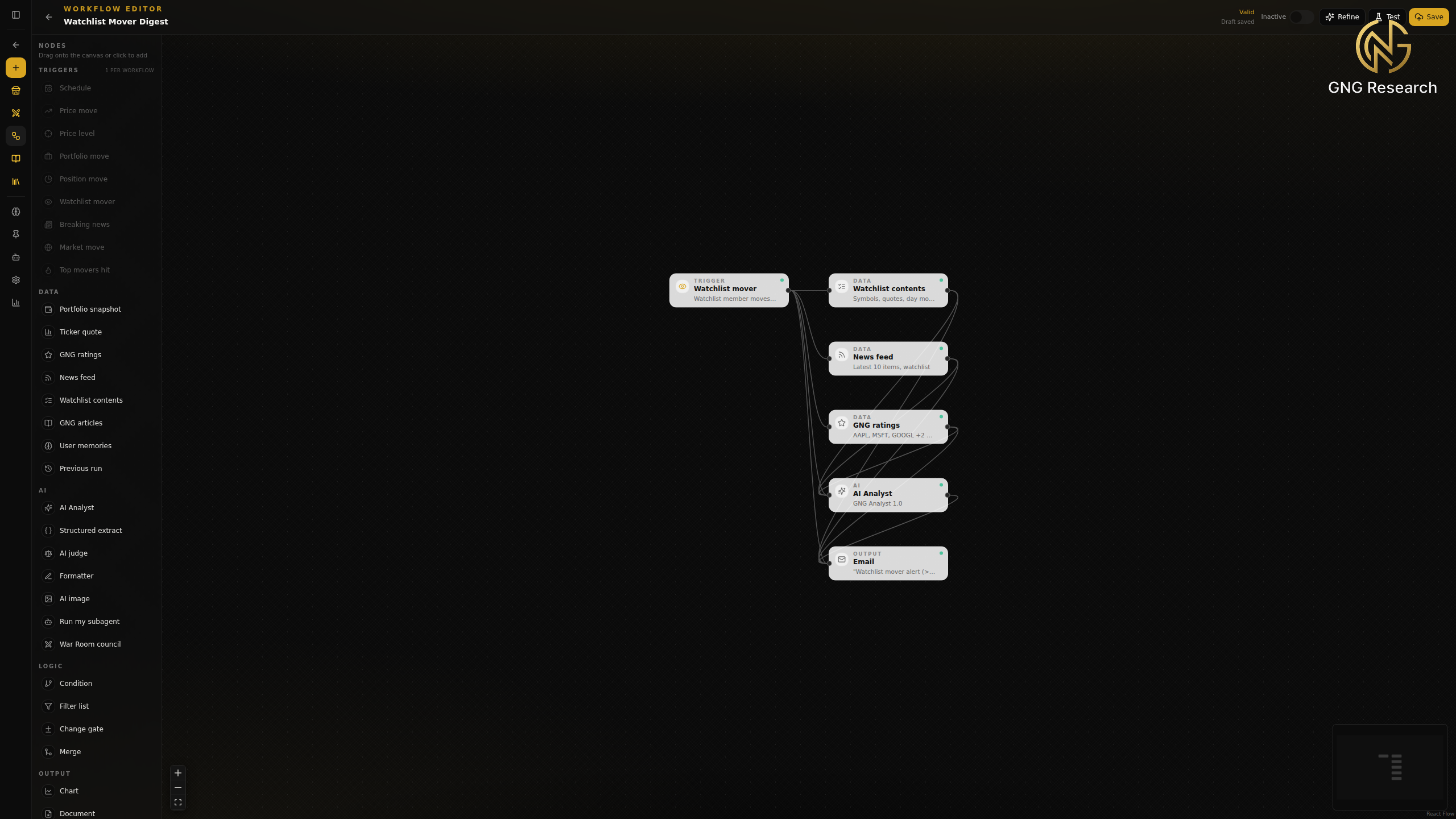
The third shape is monitoring. Point an automation at a watchlist, and when any member moves past a threshold it pulls the list with GNG ratings and the latest news on the mover, has the analyst explain what is happening, and sends you the digest. It is a standing watch on the names you care about.
Thanks for reading and being here. I will answer comments as I see them, so leave questions and pushback below, and tell me which of these you want walked through in more depth next. Thanks for being a part of GNG.!
Sign in to leave a comment and join the discussion.
Sign Up Free