How to Track a Stock Portfolio and Dividends
How to track a stock portfolio on GNG for free: enter trades by hand or import a file, follow dividends and performance, and see what Pro Lite and GNG Pro add.
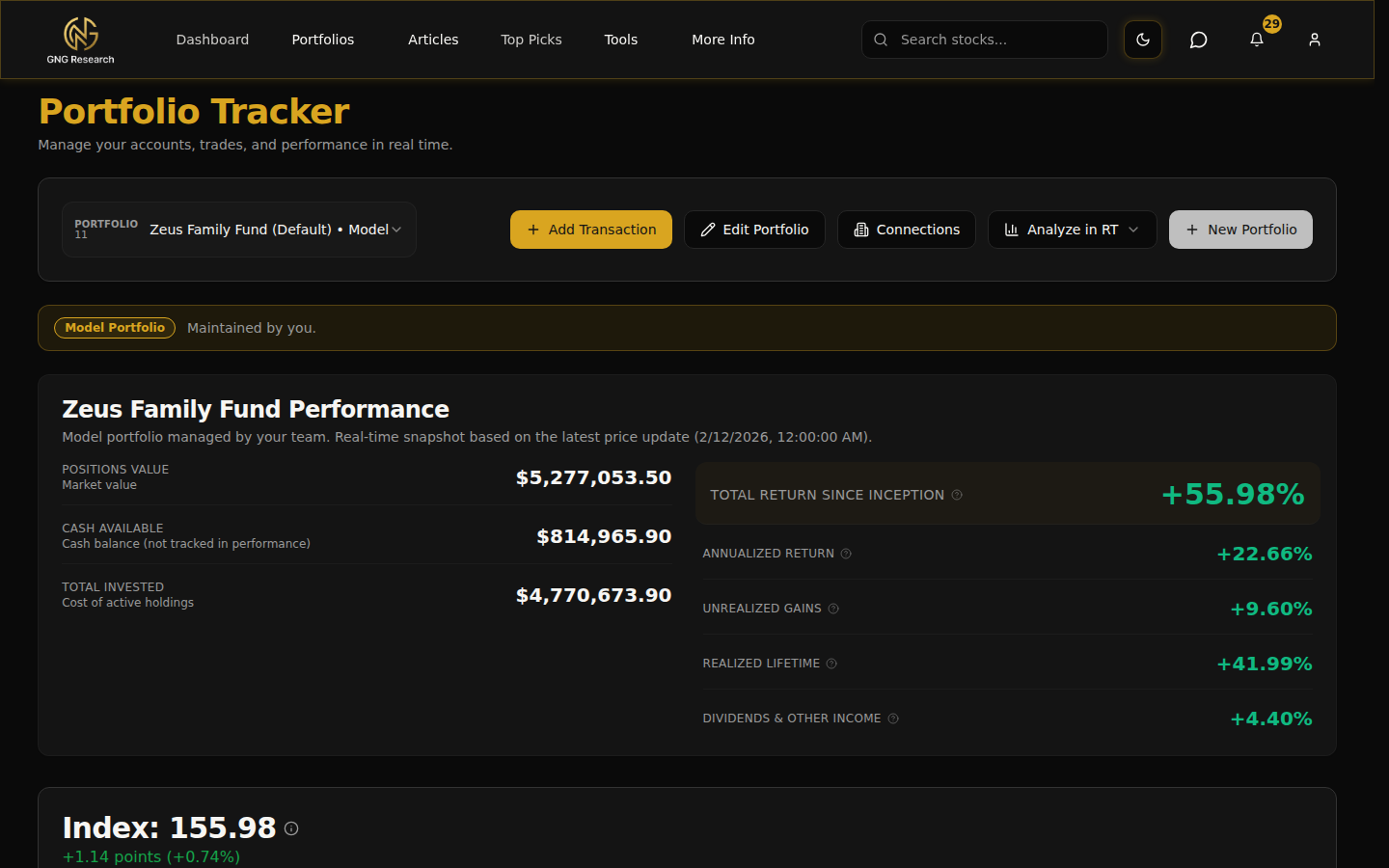
Quick checklist
- Create a portfolio and add a sample transaction
- Switch between Positions, Transactions, and Analytics tabs
- Review the portfolio chart for trend insights
- Browse Model Portfolios and open one to inspect holdings
Pro tips
- Share a portfolio with a collaborator when you want help tracking it. Permissions keep ownership intact.
- Toggle DRIP settings per holding to model reinvested dividends.
- Use Model Portfolios as research inspiration, then recreate positions in your own portfolio to track them.
- The portfolio chart and the BackTester use the same underlying price data, so numbers stay consistent.
Portfolios are where you track a stock portfolio and its dividends. Enter trades manually, browse curated models, or connect your brokerage on Pro Lite and higher. The same analytics apply.
Create and manage portfolios
Use the selector at the top to switch between portfolios. The Add Transaction dialog walks you through buys, sells, dividends, fees, and transfers. Edit or delete any row later.
Collaborators can be invited to shared portfolios with clearly separated permissions.
Analyze performance
Use the chart timeframe buttons (1D, 1W, 1M, 3M, 1Y, ALL) to view performance across different windows. Summary cards show total value, gain/loss, allocation breakdown, and cash levels.
The Analytics tab provides deeper portfolio-level performance metrics and insights.
Model Portfolios
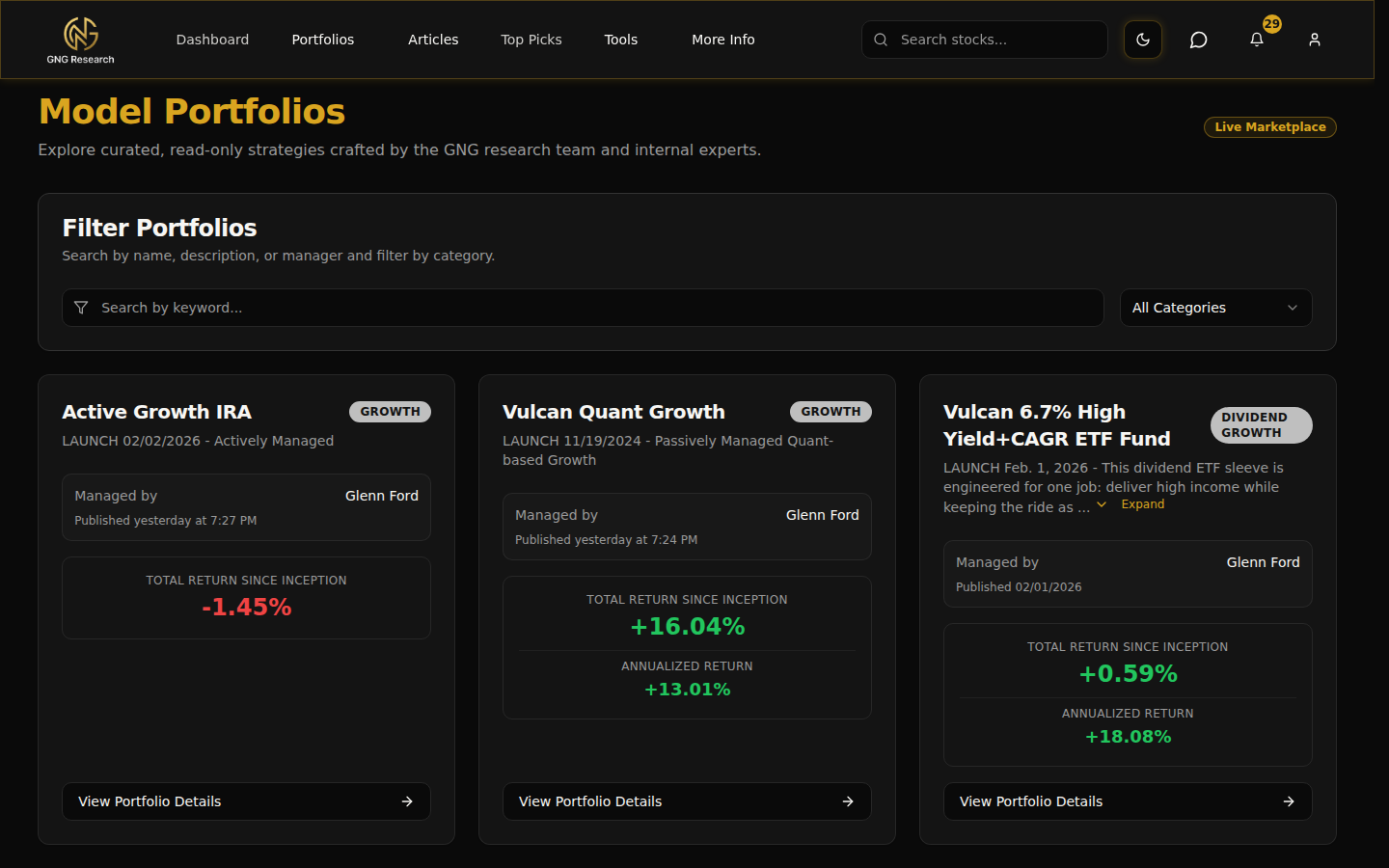
Browse curated strategies built by the GNG analyst team. Each card shows the manager, description, total value, and unrealized return.
Click into any model to view it in read-only mode using the standard portfolio workspace. Models are updated regularly. Model portfolios are part of GNG Pro.
Brokerage linking via Plaid
Connect your brokerage account to automatically sync holdings and transactions. Look for the 'Connect Brokerage' option in the portfolio workspace. Linking is read-only and available on Pro Lite and higher plans.
FAQs
- How do I track my stock portfolio on GNG?
- Create a free GNG account, open the Portfolio Tracker, name a portfolio and add your trades by hand or import them from a CSV file. GNG adds the dividends your holdings pay. Pro Lite and higher plans can link a brokerage account instead.
- Where do the prices come from?
- The same data pipeline that powers the Research Terminal: daily imports with complete history back to 1999.
- Can I edit or delete a transaction?
- Yes. Open the Transactions tab, choose Edit or Delete on any row, and holdings recalculate immediately.
- Can I copy a Model Portfolio into my own account?
- Open the model, review its holdings, then recreate positions in your own portfolio using Add Transaction. The model stays read-only so you always know what's original.